
FirstName_LastName_Resume.pdf: Copy Ready File Naming and Workflow
FirstName_LastName_Resume.pdf: Copy Ready File Naming and Workflow

Name your resume file FirstName_LastName_Resume.pdf, no exceptions unless a job posting tells you otherwise. That single pattern gives recruiters your identity at a glance, and PDF locks in your formatting no matter which device or applicant tracking system opens it. Skip the underscore for a hyphen if you like, but pick one separator and stay consistent across every file you send.
TL;DR:
- Using your full name plus “resume” in file names ensures clarity, with a recommended format like FirstName_LastName_Resume.pdf, especially when applying to multiple roles.
- PDF remains the safest default for preserving layout, but switch to Word (.docx) if explicitly requested, avoiding other formats like plain text or exotic ones.
- Limit characters to letters, numbers, hyphens, or underscores, and keep file names concise under 40 characters to prevent truncation or encoding issues.
- Include job titles or company names only when managing multiple applications or if specified by the employer to keep files organized without clutter.
- Match your resume, cover letter, and additional documents with consistent base names, changing only file suffixes to help recruiters quickly identify related materials.
Table of Contents
- Resume File Naming Templates You Can Copy Right Now
- PDF or Word Doc? What ATS Software Actually Reads
- Which Characters Are Safe in a File Name?
- Should You Add a Job Title or Company Name?
- Naming Your Cover Letter and Other Attachments to Match
- Managing Multiple Resume Versions Without Confusing Recruiters
- How Naming Fits Into a Smart Application Workflow
- Why Small Filename Habits Say More Than You’d Think
- Let ResumeMatch Handle the Busywork Around Every Application
- Where to Learn More About Resume File Naming
- Sources
- FAQ
Resume File Naming Templates You Can Copy Right Now
Most job seekers overthink this, then panic and just save the file as “resume2.pdf.” Don’t be that person. Below are the patterns we recommend most, based on what actually holds up across email attachments, portal uploads, and recruiter inboxes.
The baseline template works for almost every application: FirstName_LastName_Resume.pdf (example: Jordan_Ellis_Resume.pdf). It’s clean, it’s searchable, and it tells a recruiter exactly whose resume they’re looking at without opening the file. This format is the one Indeed’s own naming guidance points to first, and for good reason: it keeps your name and the document type in the same glance.
When you’re applying to more than one role at the same company, or you know you’ll be sending several versions this month, add the position: FirstName_LastName_Position_Resume.pdf, such as Jordan_Ellis_ProjectManager_Resume.pdf. That prevents you from accidentally attaching the wrong resume to the wrong application, which happens more than most people admit.
A few more scenarios worth templating:
- Employer requests a requisition ID: follow it exactly as written, even if it looks awkward, e.g.
Jordan_Ellis_Resume_REQ4821.pdf. - Campus recruiting or career fair submissions: include the school or event code if the recruiter asked for it, e.g.
Jordan_Ellis_Resume_StateU2026.pdf. - Long or hyphenated names: shorten sensibly.
Alexandria_Whitfield-Nguyen_Resume.pdfbecomesAWhitfield_Nguyen_Resume.pdfif the full name pushes the file name past a reasonable length.
Recruiters and hiring teams processing dozens or hundreds of applications rely on clear file names to sort and retrieve candidates quickly, a practice reinforced across career-advice guidance on naming conventions. A generic file named “resume.pdf” forces someone to rename it manually just to keep it straight from the twenty others in the folder, and that’s friction you don’t need to create.
PDF or Word Doc? What ATS Software Actually Reads
PDF is the safer default for almost every emailed or uploaded resume, because it preserves your layout exactly as designed. Fonts don’t shift, bullet points don’t collapse, and your carefully aligned columns stay put whether the recruiter opens it on a laptop, tablet, or phone.
That said, .docx still has a place. Some applicant tracking systems and recruiters specifically request an editable file, often so they can drop your text into an internal database or add notes directly into the document. Zety’s guidance on file naming backs this up: default to PDF, but switch to .docx the moment a posting asks for it.
A few format rules worth locking in:
- Stick with PDF unless a posting explicitly requests a Word file.
- Avoid .txt files entirely unless an employer specifically asks for plain text, which is rare outside older government portals.
- Skip exotic formats like .pages, .odt, or .rtf. Most ATS platforms and recruiters simply don’t parse them reliably.
- Check the job posting or upload portal for format instructions before you attach anything. Some systems reject files outright if the format doesn’t match their allowed list.
Pro Tip: Before you submit anything, open your saved PDF one more time on a different device than you created it on. Formatting glitches love to hide until you’re staring at them from a phone screen.
If you’re applying to a government role or a large organization with structured hiring software, formatting compatibility matters even more. Our federal resume format guide walks through ATS-ready formatting for those higher-stakes submissions.
Which Characters Are Safe in a File Name?
Stick to letters, numbers, hyphens, and underscores. That’s the entire safe list, and it’s not arbitrary. Special characters, accents, and punctuation like apostrophes or commas can break file systems, confuse email servers, or trip up parsing in older ATS platforms, a risk Zety’s naming rules call out directly.
Here’s what to keep in mind when you’re naming your file:
- Use only A through Z, a through z, 0 through 9, hyphens (
-), and underscores (_). - Pick one separator, hyphen or underscore, and use it consistently through the entire file name. Mixing both looks sloppy and can confuse automated parsing.
- Drop accented letters even if they appear in your legal name (write “Renee” instead of “Renée”) to avoid encoding issues across different operating systems.
- Never use commas, apostrophes, ampersands, parentheses, or slashes. They can render as broken characters or, worse, get stripped out entirely.
- Keep the visible file name under roughly 40 characters where you can. Longer names get truncated in email previews and some upload fields, hiding the part that actually identifies you.
A file name like Jordan_Ellis_Resume.pdf reads cleanly everywhere, from Gmail to an ATS dashboard to a hiring manager’s desktop folder. A file name like Jordan Éllis' Resume (Final!).pdf is a small landmine waiting for the wrong system to open it.
Should You Add a Job Title or Company Name?
Add the job title or company only when you’re managing multiple applications at once, or when the posting specifically asks for it. If you’re sending one resume to one role this week, the basic FirstName_LastName_Resume.pdf template is all you need. Adding a company name every single time creates unnecessary clutter for a recruiter who already knows what job they posted.
Indeed’s naming guidance notes that including the job title or company name becomes genuinely useful once you’re juggling several applications, since it keeps your own files organized just as much as it helps the recruiter.
A few practical examples:
- Applying to three different marketing roles this week? Use
Jordan_Ellis_MarketingManager_Resume.pdf,Jordan_Ellis_ContentStrategist_Resume.pdf, and so on. - Abbreviate common terms sensibly. “Senior” can become “Sr,” “Manager” can become “Mgr,” but don’t abbreviate so aggressively that the title becomes unrecognizable.
- If the job posting includes an exact naming convention, follow it precisely. Employer instructions always override general best practices, no matter how good the general advice is.
Naming Your Cover Letter and Other Attachments to Match
Keep the same base name across every document you submit, and change only the suffix. If your resume is Jordan_Ellis_Resume.pdf, your cover letter should be Jordan_Ellis_CoverLetter.pdf, not something unrelated like CoverLetterFinal.pdf.
This consistency matters more than it seems. Recruiters handling multiple attachments per candidate rely on matching base names to group your materials together instantly, a point emphasized in LinkedIn’s file naming guidance for job seekers. Without it, your resume and cover letter can get separated in a shared inbox or ATS folder, and one of them might get overlooked entirely.
For a full application package, this might look like:
Jordan_Ellis_Resume.pdfJordan_Ellis_CoverLetter.pdfJordan_Ellis_Portfolio.pdfJordan_Ellis_References.pdf
Use this same convention whether you’re attaching files to an email or uploading them through a portal one at a time.
Managing Multiple Resume Versions Without Confusing Recruiters

Whatever you do, never send an employer a file named resume_v3_FINAL_useThisOne.docx. Internal labels like “v1,” “draft,” or “finalFINAL” belong in your private folder, not in a recruiter’s inbox. Keep your organizational system separate from what you actually submit.
A simple three-step system keeps this manageable:
- Store working drafts locally with your own private naming convention, something like
2026-03-15_JordanEllis_ProjectManager_draft.docx, so you can track edits without ever exposing that label externally. - Before sending, rename the final version to the clean, public-facing format:
Jordan_Ellis_Resume.pdf. - Log the sent file name, the job applied to, and the date in a simple tracking spreadsheet or a dedicated tool, so you always know what you sent where.
Pro Tip: If you’re applying to more than five roles a month, a lightweight tracker saves you from the embarrassment of sending an outdated resume to a company you already applied to weeks ago. Our guide on tracking job applications walks through a version of this system you can set up in about ten minutes.
How Naming Fits Into a Smart Application Workflow
Good file naming isn’t a standalone habit. It’s one piece of a workflow that also includes picking the right format, confirming what the employer actually wants, and keeping your materials traceable once they’re out the door.
A workflow that holds up under high application volume looks like this: pick your template, confirm any portal-specific instructions, then save and upload in the requested format. That’s it. Three steps, repeated every time.
- Standardized naming reduces the sorting time recruiters spend just identifying who sent what, a benefit borne out in research on hiring workflow efficiencies at scale.
- Consistent names also improve traceability if you’re tracked manually or through an ATS, since your file becomes searchable by name instead of buried under a generic label.
- If you’re managing a high volume of applications, this consistency is part of what keeps a broader job search workflow from turning into chaos by week three.
Pro Tip: Treat your file name as part of your first impression, not an afterthought. Save it correctly once, and you never have to think about it again for that application.
Why Small Filename Habits Say More Than You’d Think
Here’s what I’ve noticed reviewing how job seekers actually submit their materials: the file name is one of the first professional decisions a recruiter sees, before they’ve read a single line of your resume. A tidy, predictable name signals that you paid attention to detail. A messy one, something like “Copy of resume (2).pdf,” signals the opposite, even if your qualifications are excellent.
Hiring teams processing dozens of applications a day genuinely lose time on poorly labeled files, a practice reinforced across global talent acquisition best practices for HR teams. Some get misfiled, some get overlooked in a crowded inbox, and a few probably never get opened at all. None of that reflects your actual skills, but it still costs you a shot.
None of this is complicated. It’s a habit, and it’s one of the easiest professional signals to control completely.
— Resume
Let ResumeMatch Handle the Busywork Around Every Application
Resume-match is the faster path when you’re applying to more roles than you can carefully format and rename by hand. Instead of manually rebuilding your resume for every posting, ResumeMatch’s AI resume analysis extracts your key skills and keywords, matches you to relevant job listings across multiple boards, and keeps your files organized as part of one connected workflow.
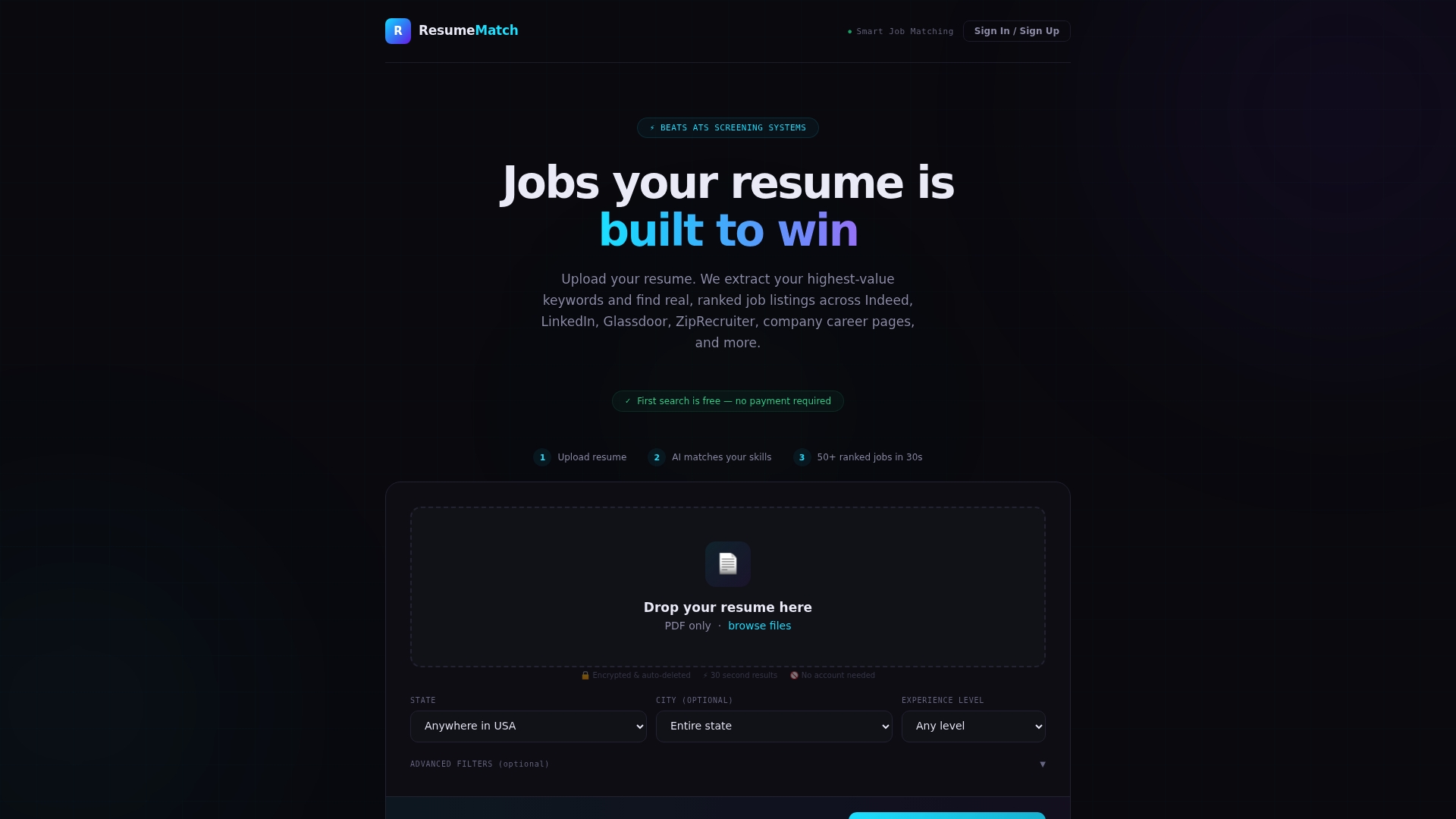
The Career Probability Report goes further, giving you salary insights, a resume gap analysis, and a personalized career strategy alongside your application tracking, so you’re not juggling spreadsheets and file folders on your own. That means less time spent renaming documents and double-checking formats, and more time actually applying. If preparing consistent, ATS-ready files for a dozen applications feels like a part-time job, the ResumeMatch Membership runs $15 per month and includes application tracking built for exactly this. Prefer to hand the applying itself off entirely? The Let Us Apply For You service is a $50 one-time fee where agents submit applications on your behalf. Start with a resume analysis and see your matches in under a minute.
Where to Learn More About Resume File Naming
For readers who want to go deeper, a few sources consistently offer reliable, practical guidance on this topic. Indeed’s file naming guide covers the basics with clear examples. Zety’s breakdown goes further into format tradeoffs between PDF and Word. LinkedIn’s recruiter-facing tips explain how consistency across documents helps hiring teams. Glassdoor’s community discussion adds real-world perspective from job seekers themselves. And Hiring Lab’s research offers a wider view of how small process details affect recruiter efficiency at scale. Whatever you read, one rule sits above all of it: if a job posting gives you specific naming instructions, follow those over any general advice, including this article’s.
Sources
- Indeed
- What to Name a Resume File & Cover Letter (+Examples) | Zety
- Resume File Naming Best Practices for Job Seekers | LinkedIn
- Picky, Picky: Resume File Naming Conventions | Career-Horizons
FAQ
How Should I Label a File for a Resume?
Use your full name plus the word “resume,” separated by a hyphen or underscore, such as Jordan_Ellis_Resume.pdf. This format is recommended across Indeed’s resume file naming guide because it identifies you instantly without the recruiter opening the document.
How Should I Name a PDF Resume File?
Name it the same way you would any resume file: FirstName_LastName_Resume.pdf. PDF is the preferred format for preserving your layout across devices, a point Zety’s guidance reinforces, unless the employer specifically requests an editable Word document instead.
How Do I Professionally Name a File?
Stick to letters, numbers, hyphens, and underscores only, and avoid special characters, accents, or punctuation that could break a file system or applicant tracking system. Keep the name concise, ideally under 40 characters, and always match your resume’s naming pattern across your cover letter and any other attachments.
What Should I Call My Resume Folder?
There’s no strict standard, but a simple, private label works best, something like “Job Applications 2026” or “Resume Drafts.” Keep this folder separate from what you send externally. Internal version labels like “v1” or “final” should stay in your private folder and never appear in a file name you actually submit.
Does ResumeMatch Help With File Naming or Application Tracking?
ResumeMatch focuses on resume analysis, job matching, and application tracking rather than file renaming itself, but its structured export and tracking conventions are built to keep your materials consistent for recruiter review. Pairing a clean naming habit with the ResumeMatch Membership at $15 per month gives you both organized files and a system to track where each one was sent.